Fixing issues in an uploaded beneficiary file
Similarly, if you uploaded an error-free beneficiary file, but then you subsequently upload a file for some or all of the same beneficiaries and the file has errors or is missing required information, that second file will break those beneficiaries, and they will be considered incomplete.
 wrench.
To fix the incomplete beneficiaries, you can either upload another beneficiary file that has complete information, or you can fix the beneficiary issues in the .
Upload a new file
To fix the incomplete beneficiaries, you can correct the original file so that it contains complete information, and then upload the file again. If the newly uploaded file contains all the required information, the incomplete beneficiaries will be updated, and their status will be complete. On the grid, the file status will be a  green check . On the page, the status for each of the beneficiaries will be , and you can instruct payments to the beneficiaries.
Fix the beneficiary issues
When you fix or make changes to beneficiaries, the updated information is authoritative. This means that even if you later upload a file that contains different or incomplete information for these beneficiaries, the existing beneficiary information will not be overwritten by the uploaded file.
To fix uploaded beneficiary issues
- In the , locate the file that contains fixable issues.
- Click in either the column or the column.
The page appears.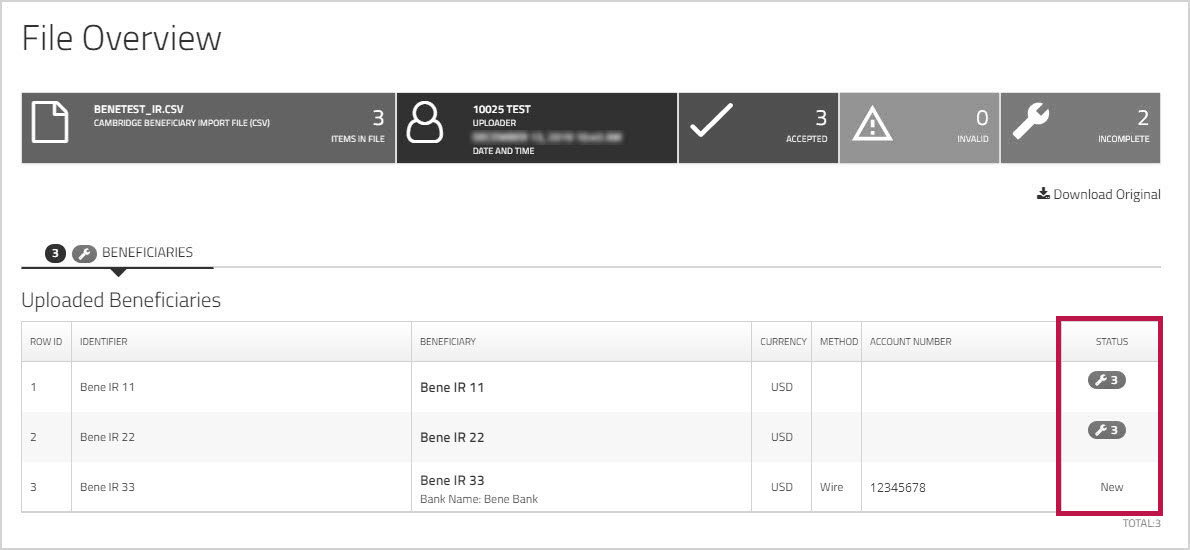
Each line item that has an issue displays a wrench with a number. The number indicates how many issues that beneficiary has.
 - Click the wrench to see a slide-out that displays details about the information that is missing or incorrect.
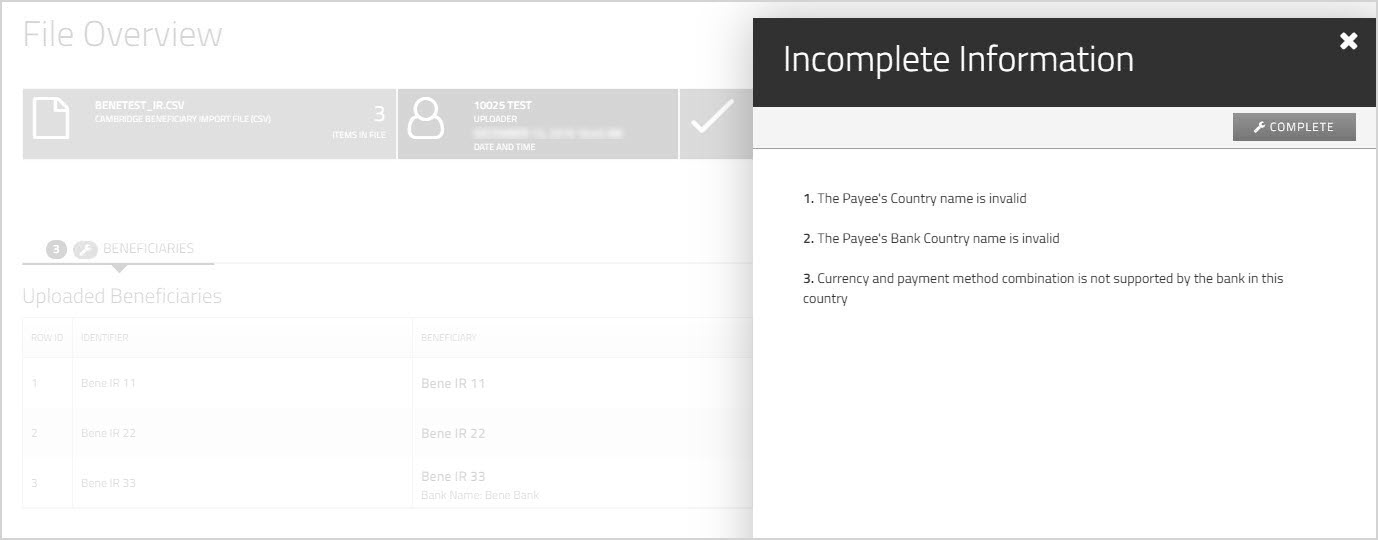
- Click .
The Beneficiary template opens to the first section that has an issue.
Note: Users must have the permission to update the beneficiary template. - Correct the issue or supply the missing information, and then click to move to the next section that has an issue.
- When all issues have been corrected for that beneficiary, click to save the template.
If your account configuration requires you to authenticate via when creating, or editing a beneficiary, when you click , you will be prompted to select one of the authentication methods you set up. For more information, see Multi-Factor Authentication
You are returned to the page. The beneficiary status changes to for an existing beneficiary or for a new beneficiary. You can now send payments to the beneficiary.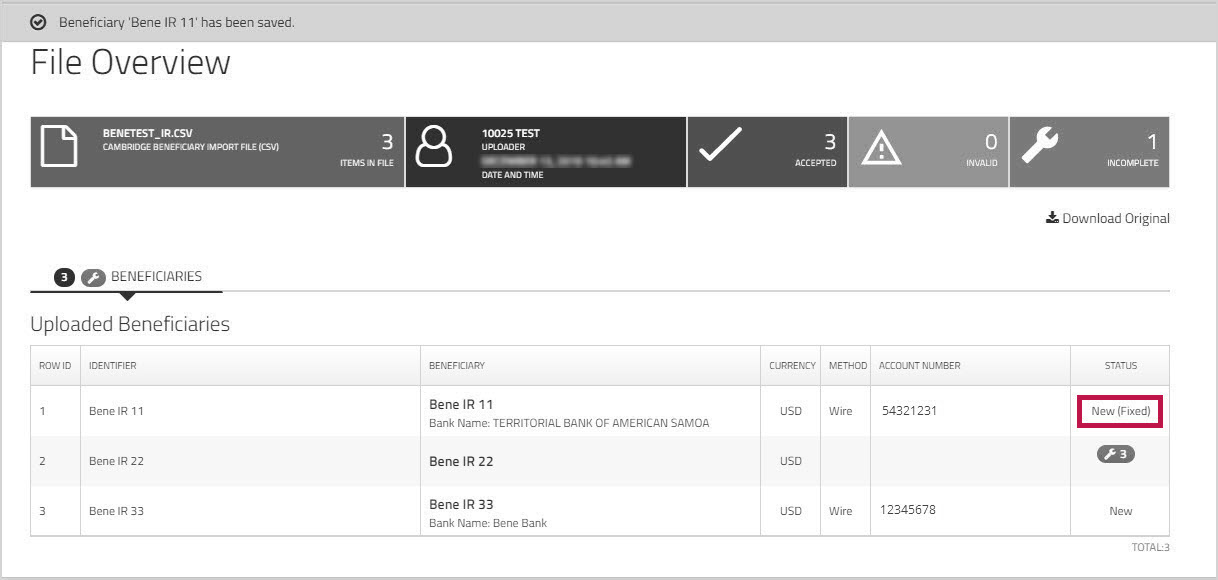
- Repeat these steps to fix any other beneficiaries that have issues.